Transfer Google Workspace
If you already pay for Google Workspace in USD on a personal or company card, you can move that subscription into Mercurie and switch to Naira billing in a few minutes — without losing service, your mailboxes, your data, or your admin access.
This page walks through the Google Workspace transfer end to end. For cloud billing, use the dedicated guides for AWS Billing Transfer and Google Cloud Billing; those setups are support-led because each cloud account has its own billing context.
Two paths to Mercurie billing. This page is for an existing subscription you already pay for elsewhere. If you don't have a Google Workspace subscription yet, buy a fresh one through Mercurie instead — same Naira pricing, no transfer steps.
Before you start
You'll need:
- Super-admin access to the Google Workspace account you want to transfer.
If you can't sign in to
admin.google.comand see Subscriptions, ask whoever set the account up to add you as a super-admin first. - Your domain. This is the primary domain attached to the Workspace
account — usually the same domain as your work email (e.g.
acme.com). - A Mercurie account. Sign in at mercurie.ng. If you haven't yet, the Getting Started page covers the first sign-in.
You don't need:
- To cancel anything at Google first — the transfer keeps the subscription live throughout. Your users keep their email, Drive, Calendar, and every other Workspace service without interruption.
- To touch DNS. Your MX records, SPF, DKIM, and domain ownership all stay exactly where they are.
- To cancel the subscription yourself before starting. If another reseller currently manages the subscription, they may still need to release or confirm the transfer in Google's reseller system before Mercurie can complete it.
Step 1 — Start the transfer in Mercurie
From the dashboard, open Quick Action and choose Transfer Existing Subscription.
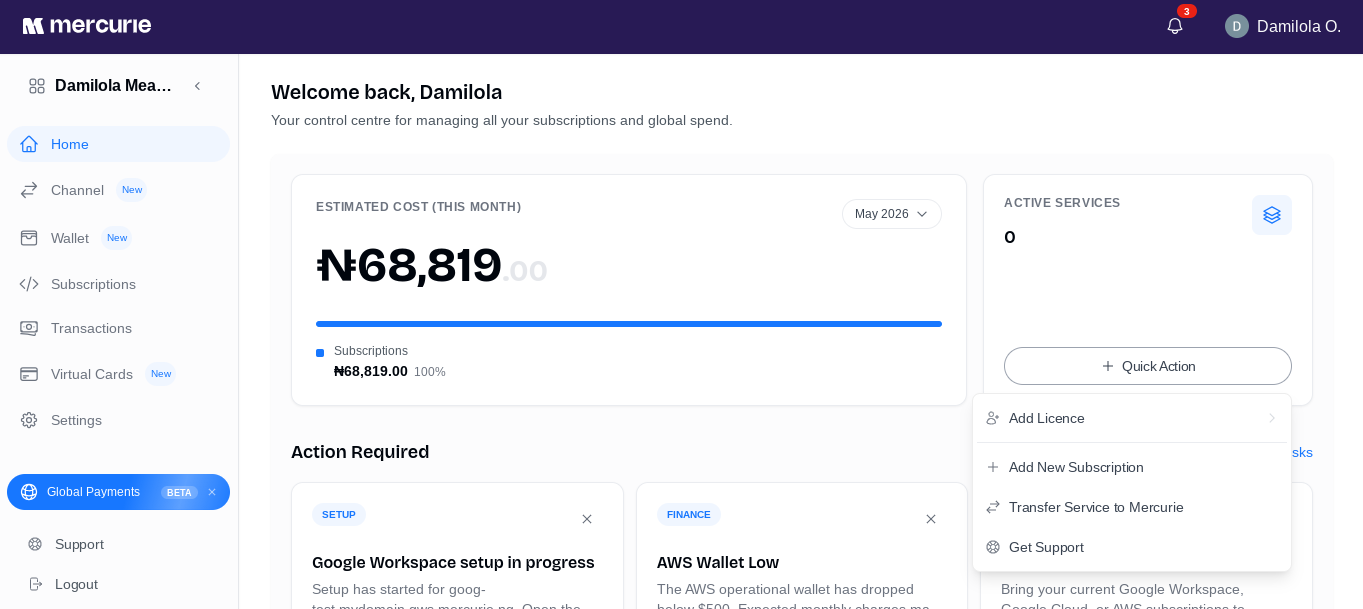
Mercurie opens the platform picker.
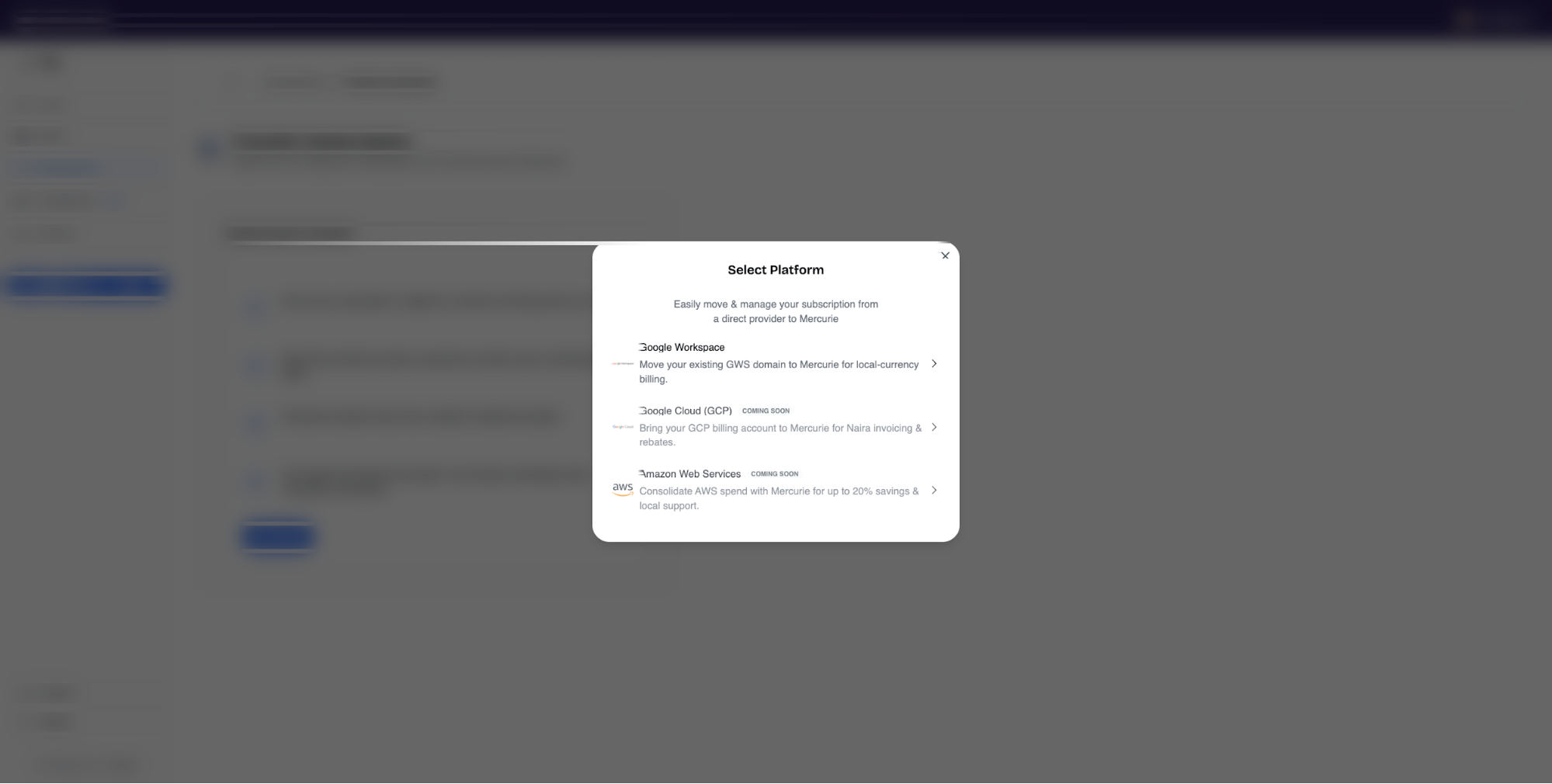
Step 2 — Pick Google Workspace
Pick Google Workspace from the platform list. Use the cloud-billing guides if you want to move AWS or Google Cloud billing instead.
Step 3 — Enter your domain
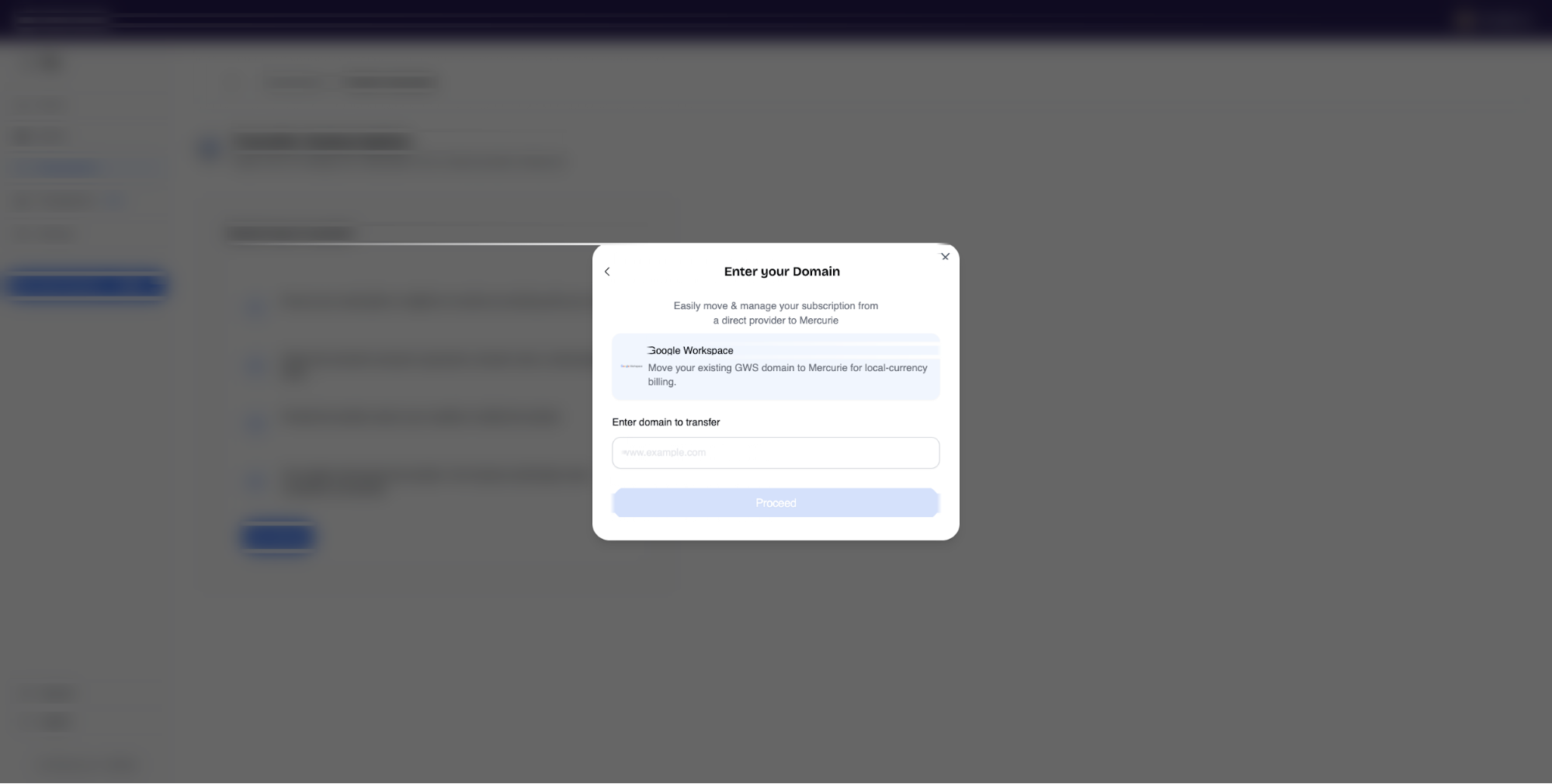
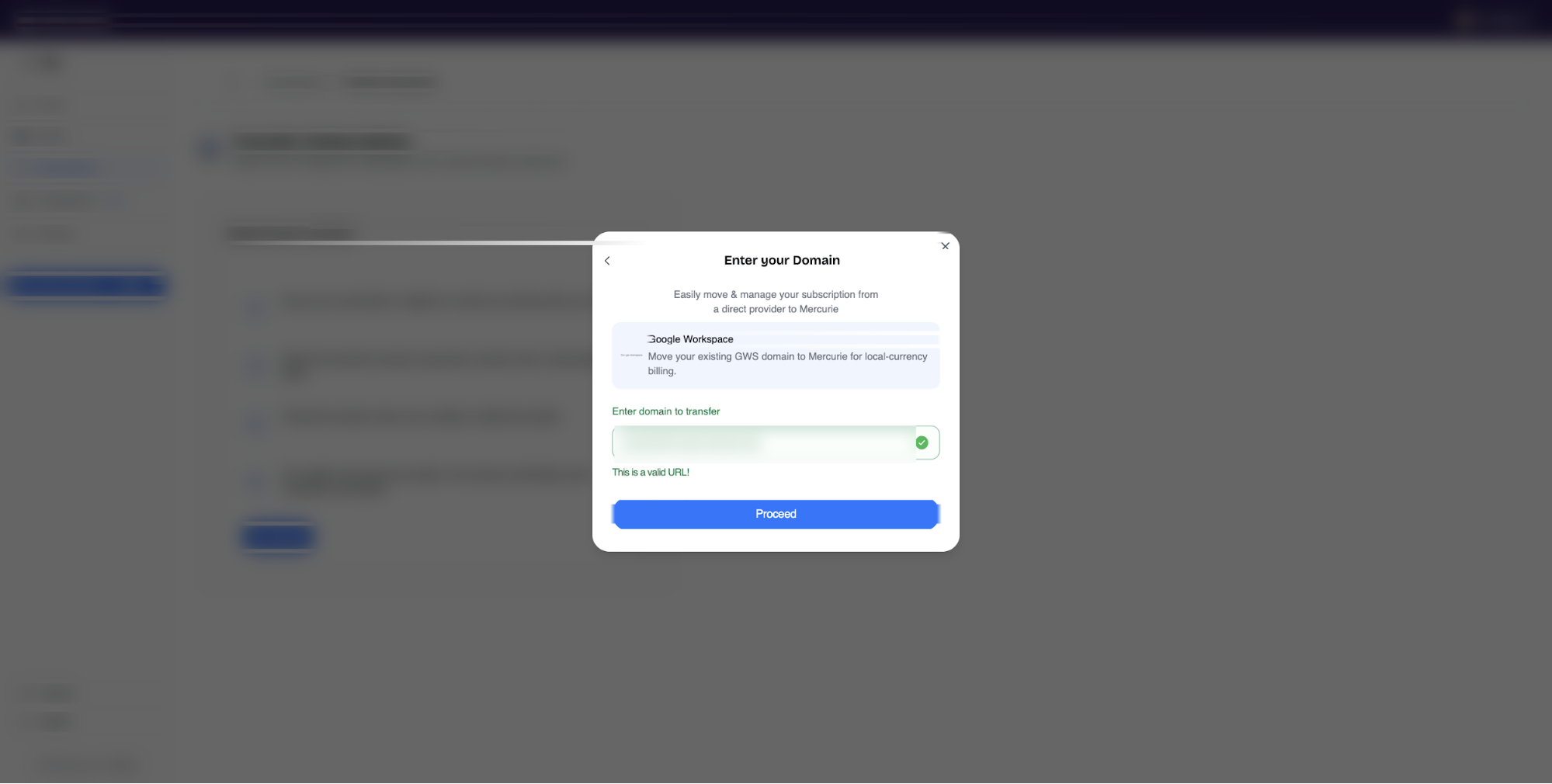
Enter the primary domain attached to your Workspace account and click Proceed. Mercurie validates the domain in real time — once it's recognised as a Workspace domain, the Proceed button enables.
If the domain isn't currently on Google Workspace at all, Mercurie will route you to the buy flow instead — there's nothing to transfer, so the next step would be picking a fresh plan. See Buy a new subscription.
Step 4 — Authorise the transfer in Google Admin
This is the only part of the flow that happens outside Mercurie. After you click Proceed, Mercurie shows you a four-step wizard with everything you need: the reseller code to copy and a button that opens Google Admin in a new tab.

In the wizard:
- Copy the reseller code. This is Mercurie's public reseller identifier — Google uses it to know who you're transferring to. The exact value is shown in the wizard; copy it with the button next to the field.
- Click Admin Console to open
admin.google.comin a new tab. Sign in as a Workspace super-admin for the domain you entered in Step 3. - Open Reseller Management at admin.google.com/ac/resellermanagement. Find your Workspace subscription under Subscriptions from Google and click Transfer.
- Step through Google's three-stage transfer wizard.
- Stage 1 — Reseller Identifier. Paste Mercurie's reseller code into the input field and click CONTINUE.
- Stage 2 — Configure Product. For each Workspace product, pick
Transfer to
<Mercurie>(top option). Click CONTINUE. - Stage 3 — Transfer Authorization. Review the summary, then click GENERATE TRANSFER AUTHORIZATION. Google confirms with a "Transfer authorization generated successfully" modal — click OK.
What Google enforces on every reseller change. These rules apply to any direction of transfer (to us, away from us, between two other resellers):
- The transfer authorisation is valid for 30 days. If you don't finish Step 5 within that window, just restart the Mercurie wizard and a new authorisation will be issued — no penalty.
- You can change reseller on a single Workspace account a maximum of 5 times per year.
- Prepaid annual periods are not refunded or pro-rated when you change reseller. If you're on an annual plan, time the move close to your renewal date so you don't pay twice for the same period.
If you want a screenshot tour of Google's three-stage wizard, the same screens appear in any reseller transfer — Google's UI is symmetric whether you're moving to Mercurie or away from us.
If your current reseller delays the release
If your Workspace subscription is currently managed by another reseller, the transfer can remain pending until that reseller's release or Google transfer state is ready. Ask the reseller to confirm that the subscription is eligible for transfer and that there is no reseller-side hold.
If the release is delayed, send Mercurie support:
- Your primary Workspace domain.
- The name of the current reseller, if you know it.
- Any transfer error shown in Google Admin.
- The date you asked the current reseller to release the subscription.
Mercurie can retry the transfer once the reseller or Google state is ready, but we cannot override another reseller's contract terms or Google's transfer controls.
If there are unpaid invoices or billing holds
Unpaid Google or reseller invoices can delay a transfer if they create a billing hold, suspension, or contract issue in Google Admin. Check Billing in Google Admin and ask the current reseller or Google billing support to confirm whether anything must be settled before the subscription can move.
If you are unsure, do not start a second purchase for the same domain. Contact Mercurie support with the domain, the billing message you see, and any invoice reference so we can advise the safest next step.
If the subscription is suspended before transfer
A suspended Workspace subscription may need review before it can be transferred. The next step depends on the suspension reason:
- Terms of Service or first-time setup: the Workspace super-admin usually needs to accept Google's Terms of Service before service can reactivate.
- Billing or payment: resolve the billing issue with Google or the current reseller, then retry the transfer.
- Policy or Google suspension: contact Google or the current reseller first; Mercurie cannot bypass Google policy holds.
If Google Admin still shows a transfer option, Mercurie support can help review the case. Share the domain and the exact suspension message shown in Admin Console.
Step 5 — Finish in Mercurie
Come back to the Mercurie tab and click Proceed at the bottom of the wizard. Mercurie picks up the transfer authorisation and attaches the subscription to your business — typically within a couple of minutes, sometimes up to 15 minutes while Google's reseller system propagates the new authorisation. If the dashboard says "not ready yet", give it a few minutes and refresh.
Once it's picked up, Mercurie routes you to Select Packages so you can confirm seat count and plan, see your Naira pricing, and add a payment method.
If you haven't yet, add a payment method at this stage so your first Mercurie renewal goes through cleanly.
If Mercurie shows an error after payment or while finishing setup, follow Error after paying for Google Workspace before retrying or paying again.
What changes after the transfer
| Before | After | |
|---|---|---|
| Billing currency | USD on your card | NGN invoiced by Mercurie |
| Who you pay | Google direct (or another reseller) | Mercurie, in Naira |
| Service | Live | Live — no interruption, no migration window |
| Mailboxes, Drive, Calendar, Meet | Yours | Yours — nothing moves |
| Domain ownership / DNS | Yours | Yours — no DNS change |
| Admin access | Same super-admins | Same super-admins — admin in admin.google.com as before |
| Renewal cadence | Whatever you had (annual / monthly / flex) | Preserved |
| Support | Google + your previous reseller | Billing & provisioning via Mercurie; product issues still via Google |
Draft email to send your current reseller
If your subscription is currently managed by another reseller, you can send them a short email to kick off the transfer. Copy the template below, fill in the placeholders, and send it to your reseller's support contact.
Subject: Google Workspace transfer request — [Your Domain]

Hi [Your Reseller Name],

I would like to transfer my Google Workspace subscription for [Your Domain] to Mercurie (a Google authorised reseller).

Could you please confirm that the subscription is eligible for transfer and share the transfer authorisation token once you have generated it?

If you need Mercurie's reseller code to initiate the transfer, here it is:

[Mercurie Reseller Code]

Once I receive the transfer token, I will copy it and complete the transfer in my Mercurie dashboard.

Thank you for your help.

Best regards,
[Your Name]
Tip: You can find Mercurie's reseller code in the transfer wizard inside the Mercurie dashboard (see Step 4 above). Copy it from the wizard and paste it into the
[Mercurie Reseller Code]placeholder before sending.
Common questions
Will my users notice anything? No. Email keeps flowing, Drive/Calendar/Meet stay live, every existing user keeps their account exactly as it was. The transfer is a billing change inside Google's reseller system — nothing user-facing moves.
Can I transfer back? Yes. You own your Workspace account; you can move billing back to Google direct at any time by opening a support ticket and requesting a transfer away. There's no interruption to service.
My subscription says "Suspended" right after the transfer. If the suspension reason mentions Terms of Service or first-time setup, it's a one-time setup step Google requires from your Workspace super-admin — see Reactivate a suspended subscription. For any other suspension reason, open a support ticket and we'll investigate from the partner side.
My current subscription is with a different reseller, not Google direct. Mercurie can accept the transfer the same way — Google's transfer system treats both cases identically. If your current reseller has imposed a contractual lock or a mid-term penalty, you'll see that surfaced when you click Transfer in Google Admin and you can decide from there.
What if the previous reseller is not responding? Ask them in writing to confirm release or eligibility for reseller transfer. If they do not respond, send Mercurie support the reseller name, your domain, and any Google Admin transfer message. We can help you decide whether to wait, retry later, escalate with Google, or use another onboarding path.
The transfer code didn't work. The most common cause is a copy-paste typo — re-copy the code from the Mercurie wizard (the field has a copy button) and try again. If the code itself was rejected as expired, restart the Mercurie wizard and Google will issue a fresh token.
I paid, then saw a provisioning error. Do not pay a second time for the same domain. Use Error after paying for Google Workspace and contact support with the domain, payment time, and exact error text.
I don't see a Transfer button in Google Admin. You're probably signed in as a regular admin, not a super-admin. Sign out, sign back in as a super-admin for the domain, and the option will appear under Subscriptions from Google.
How long does the whole thing take? The Mercurie + Google steps usually take 5–10 minutes end to end. Mercurie's first invoice in Naira lands on your next normal renewal date — the transfer doesn't reset or short-cycle your billing period.
Can I get help? Yes. The Support entry in the Mercurie sidebar opens a ticket with our ops team and we'll walk you through it personally. Most transfers are completed same-day.