Sign Up
Mercurie accounts are free to create. You only pay when you buy or transfer a subscription. Two ways to start: Google or email and password. Either way, the second step is a short business profile so we can route invoices, tax IDs, and KYC correctly.
Open mercurie.ng and click Sign Up (top-right) — or go straight to /app/signup.
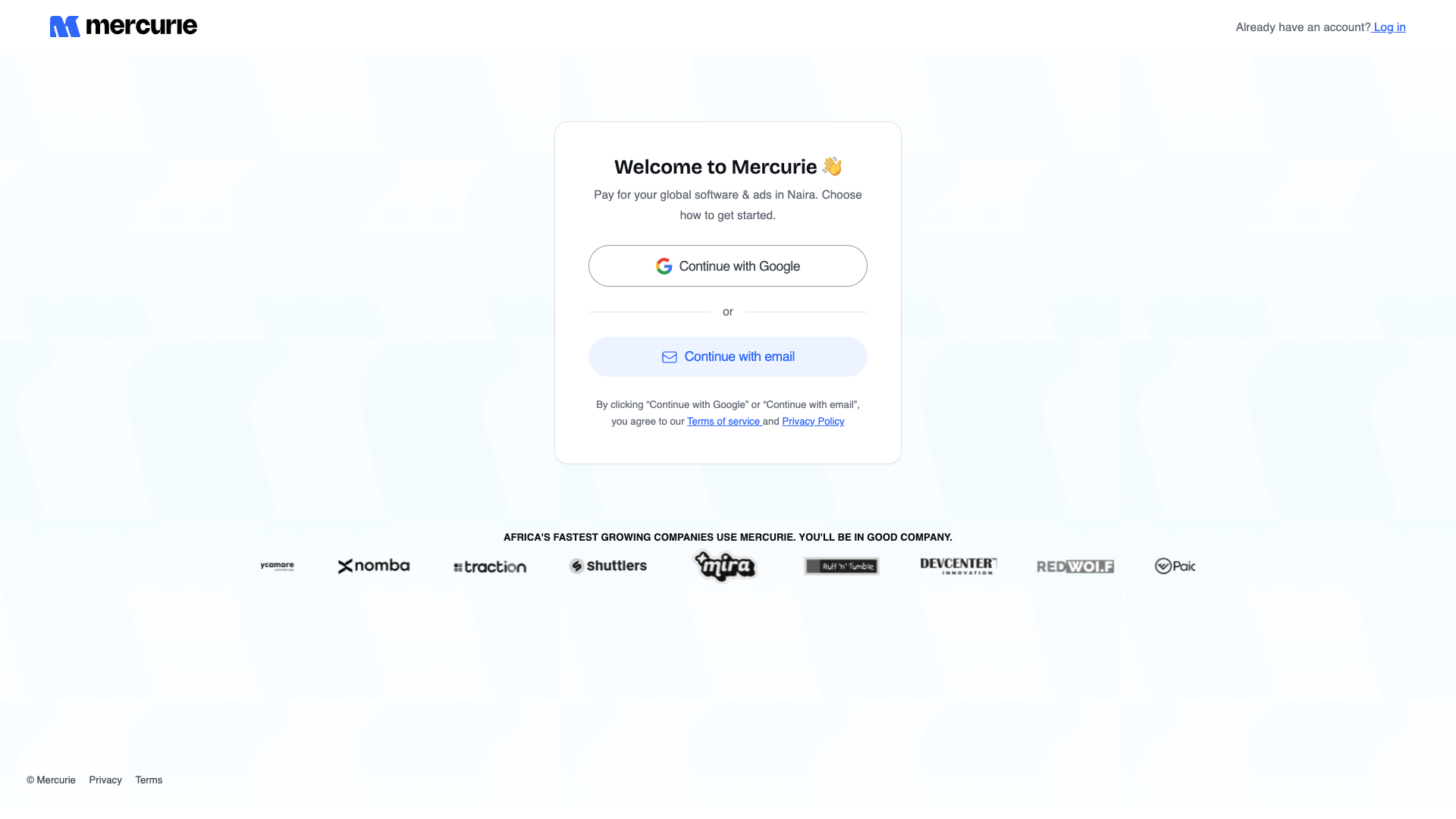
Option 1 — Continue with Google
The fastest path. We use Google's standard OAuth consent screen and only request email and profile scopes — we never read your mail, calendar, or Drive.
- Click Continue with Google.
- Pick the Google account you want associated with this Mercurie tenant.
Most teams use a shared finance address (e.g.
billing@yourcompany.com) rather than a personal Gmail. - On Google's consent screen, click Continue to grant the email + profile scopes.
- You land on the Mercurie account-set-up wizard with Step 1 already ticked (we got your name and email from Google).
Why use a shared finance email? Mercurie sends invoices, renewal reminders, and KYC requests to the email on the account. A personal Gmail works, but if that person leaves, you'll need to transfer ownership. Better: create the account on a shared address from day one.
Option 2 — Continue with email
Use this if your finance team doesn't have a Google Workspace account, or if you want a stable shared inbox that isn't tied to anyone's identity.
- Click Continue with email.
- Enter your full name, work email address, and a strong password (at least 8 characters, mixed case, one number).
- Click Continue. We send a 6-digit verification code to that email.
- Open the inbox, copy the code, paste it back into Mercurie, and click Verify.
- Step 1 is now complete — Mercurie advances you to the business-profile step below.
Step 2 — Business profile
Same step for both paths. We need this to issue valid invoices, run KYC, and route subscriptions to the right entity.
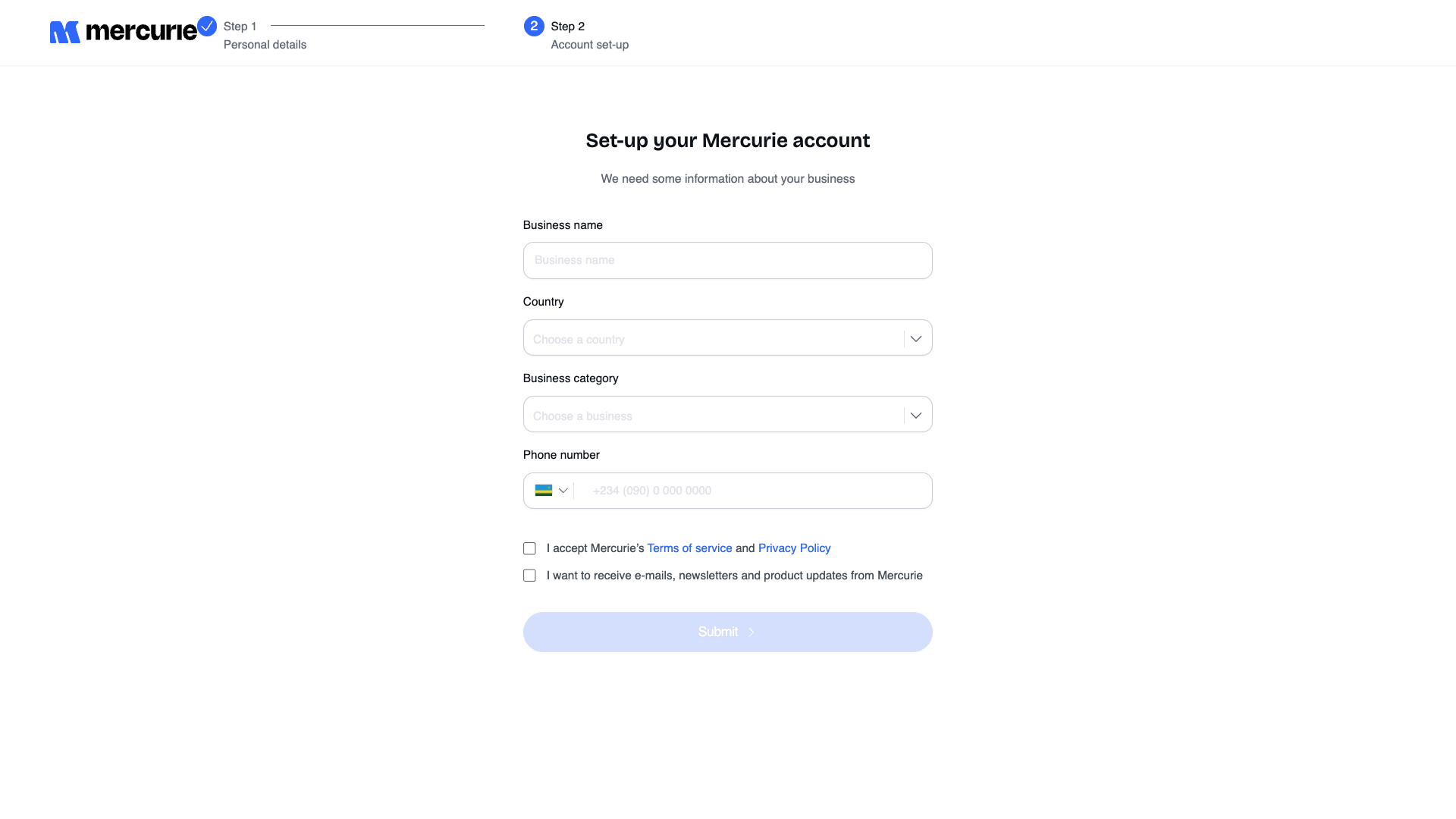
| Field | What to enter | Why |
|---|---|---|
| Business name | The legal name on your CAC (or local equivalent) certificate. | Appears on invoices and Paystack receipts. |
| Country | Where the business is registered. | Determines accepted payment rails and the tax treatment of your invoices. |
| Business category | Closest match to your primary line of business. | Used for KYC risk scoring and partner offer eligibility. |
| Phone number | A reachable mobile number with country code. | Used for transactional alerts (renewal failures, KYC requests) and 2FA. |
Tick I accept Mercurie's Terms of service and Privacy Policy. Optionally tick the marketing-email opt-in. Click Submit.
You're done — Mercurie drops you on the dashboard. From here:
- Already paying Google Workspace in USD? Jump to Transfer Google Workspace.
- Already paying AWS or Google Cloud in USD? Start with AWS Billing Transfer or Google Cloud Billing.
- Starting fresh? Head to Buy a new subscription and pick a plan billed in Naira.
- Either way, add a payment method before your first renewal date.
Trouble signing up
| Symptom | Likely cause | Fix |
|---|---|---|
| "Email already in use" on email signup | An older Mercurie account exists on that address — possibly created during a partner offer demo. | Use Sign In instead, or reset the password if you've lost it. |
| Verification code never arrives | Code routed to spam, or an email gateway dropped it. | Check spam, then click Resend code. If it still doesn't arrive after 5 minutes, try a different inbox or switch to Google sign-in. |
| Google consent screen says the app is unverified | You're connecting from outside Mercurie's verified Google project. | Don't proceed. Email support@mercurie.ng — never grant scopes to a Google consent prompt that doesn't say mercurie.ng. |
| Submit button stays disabled on Step 2 | The Terms checkbox is unchecked, or one of the four required fields is empty. | Tick the Terms box and fill every field — Country and Business category must be selected from the dropdowns, not typed. |
If you're still stuck, the Support entry on the dashboard sidebar opens a ticket with the Mercurie ops team. Most signup issues are resolved same-day.