Sign In
Existing accounts log in at mercurie.ng/app/login or mercurie.com/app/login. Both domains open the same Mercurie dashboard. Use whichever method you signed up with — Google or email — but you can't mix them on the same account.
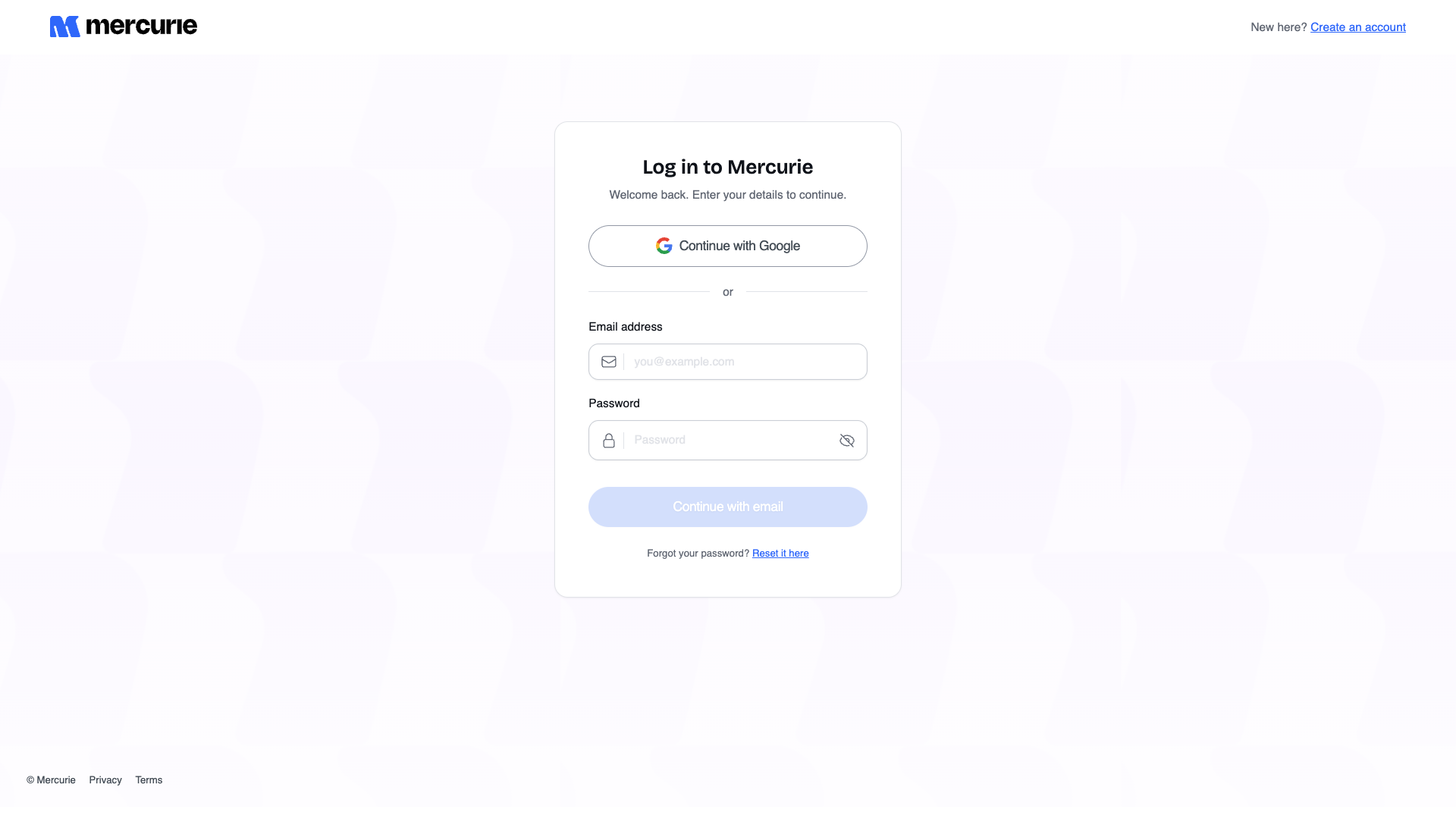
Continue with Google
If you signed up with Google, always use this button. Don't try to set an email password later — Google-signed-up accounts have no local password on file.
- Click Continue with Google.
- Pick the same Google account you used at signup.
- You're in. Mercurie redirects to the dashboard.
If you accidentally pick the wrong Google account, click your avatar → Logout, then click Continue with Google again and choose Use another account.
Continue with email
If you signed up with email and password, fill the form:
- Enter your email address.
- Enter your password.
- Click Continue with email. The button is disabled until both fields are filled.
You land on the dashboard. The session is sticky — Mercurie remembers you on this device for 30 days unless you click Logout.
Forgot the password?
Click Reset it here under the Continue button. Full flow: Reset password.
Don't have an account?
Click Create an account in the top-right of the log-in screen, or follow Sign Up.
Trouble signing in
| Symptom | Likely cause | Fix |
|---|---|---|
| "No account found for this email" on email login | You signed up with Google, not email. | Use Continue with Google instead. |
| Google sign-in opens but lands back on /app/login | Pop-up blockers, third-party cookies disabled, or you cancelled Google's consent screen. | Allow third-party cookies for accounts.google.com, mercurie.ng, and mercurie.com, then retry. |
| "Incorrect email or password" but you're sure it's right | Caps Lock, autofill stale credentials, or you're using a different email than at signup. | Try Reset password. The reset email confirms which address Mercurie has on file. |
| You see Google's "Choose an account" dialog with an unfamiliar address | Browser is signed into a different Google profile. | Click Use another account and pick the right one. |
Logging out
Open the avatar menu in the top-right of the dashboard and click Logout. The session is invalidated server-side immediately — closing the tab without logging out keeps the session live for 30 days.
For shared finance laptops, log out at the end of each session.