Buy a New Google Workspace Subscription
If you don't have a Google Workspace subscription yet, you can buy one directly through Mercurie in a few minutes. You'll pick a plan, verify your domain, set up your Google Workspace admin account, and pay in Naira with no USD card required.
Already have Workspace elsewhere? If you already pay for Google Workspace through Google directly or another reseller, transfer it into Mercurie instead. The transfer keeps your mailboxes, data, and admin access intact.
Before you start
You'll need:
- A domain you own. This will be the primary domain for your Workspace account, such as
yourcompany.com. - A Mercurie account. Sign in at mercurie.ng. If you haven't created one yet, start with Getting Started.
- A payment card. Mercurie uses Paystack for checkout, so have your Naira debit or credit card ready.
You don't need:
- An existing Google Workspace account for the domain. You'll create the admin account during setup.
- To change DNS before checkout. Domain verification happens after payment if Google requires it.
Step 1: Start from the dashboard
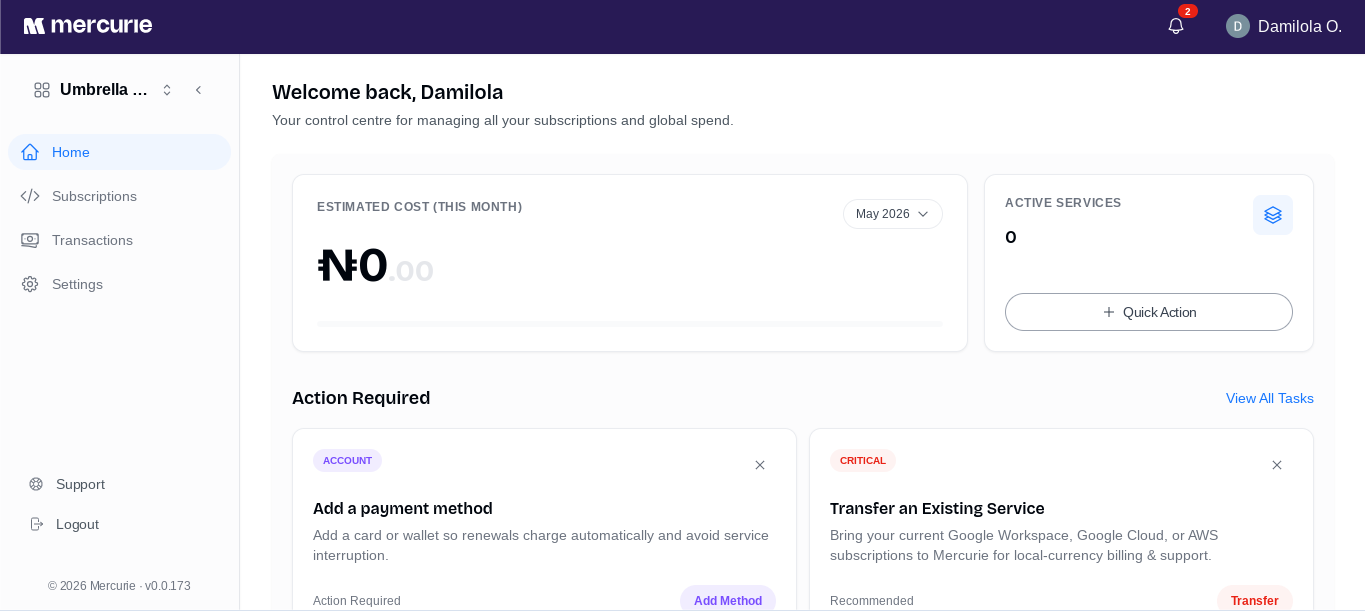
After signing in to Mercurie, open Quick Action and choose Add New Subscription.
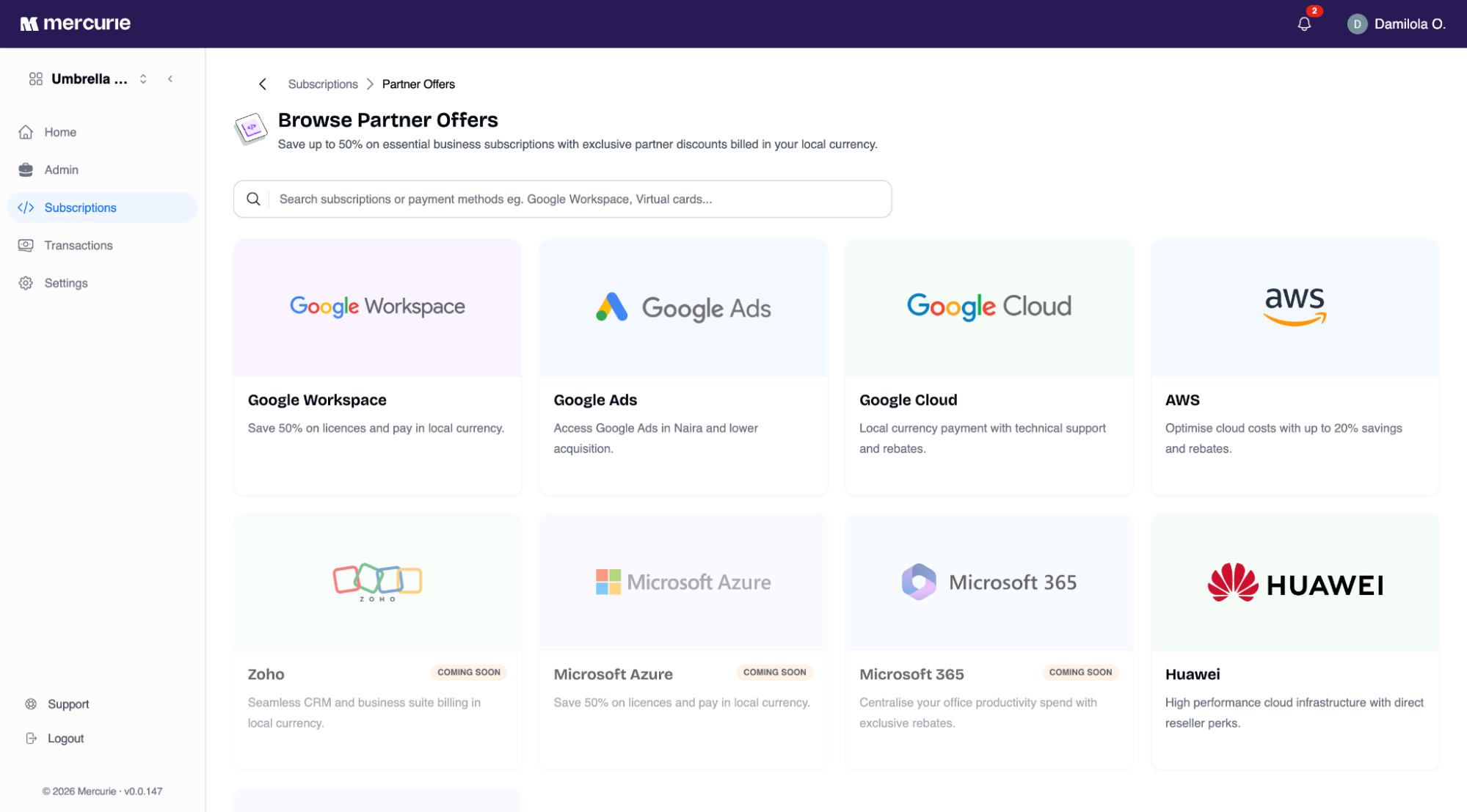
Mercurie opens the Partner Offers page. Choose Google Workspace from the list of partner products.
Step 2: Pick a plan
Mercurie shows the available Google Workspace plans and their current Naira pricing.
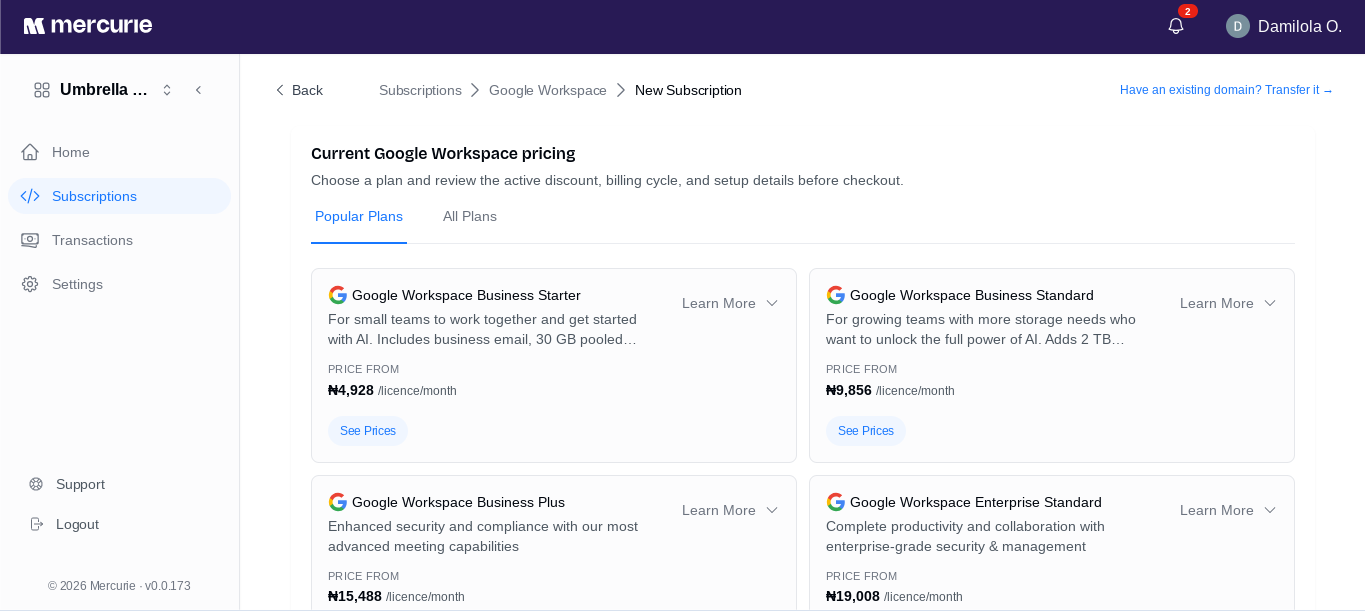
Google Workspace offers four tiers:
| Plan | Best for |
|---|---|
| Business Starter | Small teams that need business email, Meet, Calendar, and shared Drive storage. |
| Business Standard | Growing teams that need larger storage, meeting recording, and stronger collaboration tools. |
| Business Plus | Teams that need more storage and advanced security controls. |
| Enterprise Standard | Larger organizations that need enterprise-grade management and compliance features. |
Because you're paying in Naira, Google Workspace pricing on Mercurie is dynamic. The exact Naira price depends on the prevailing USD/NGN rate and the live Google offer catalog. The checkout will show the exact amount payable before you pay.
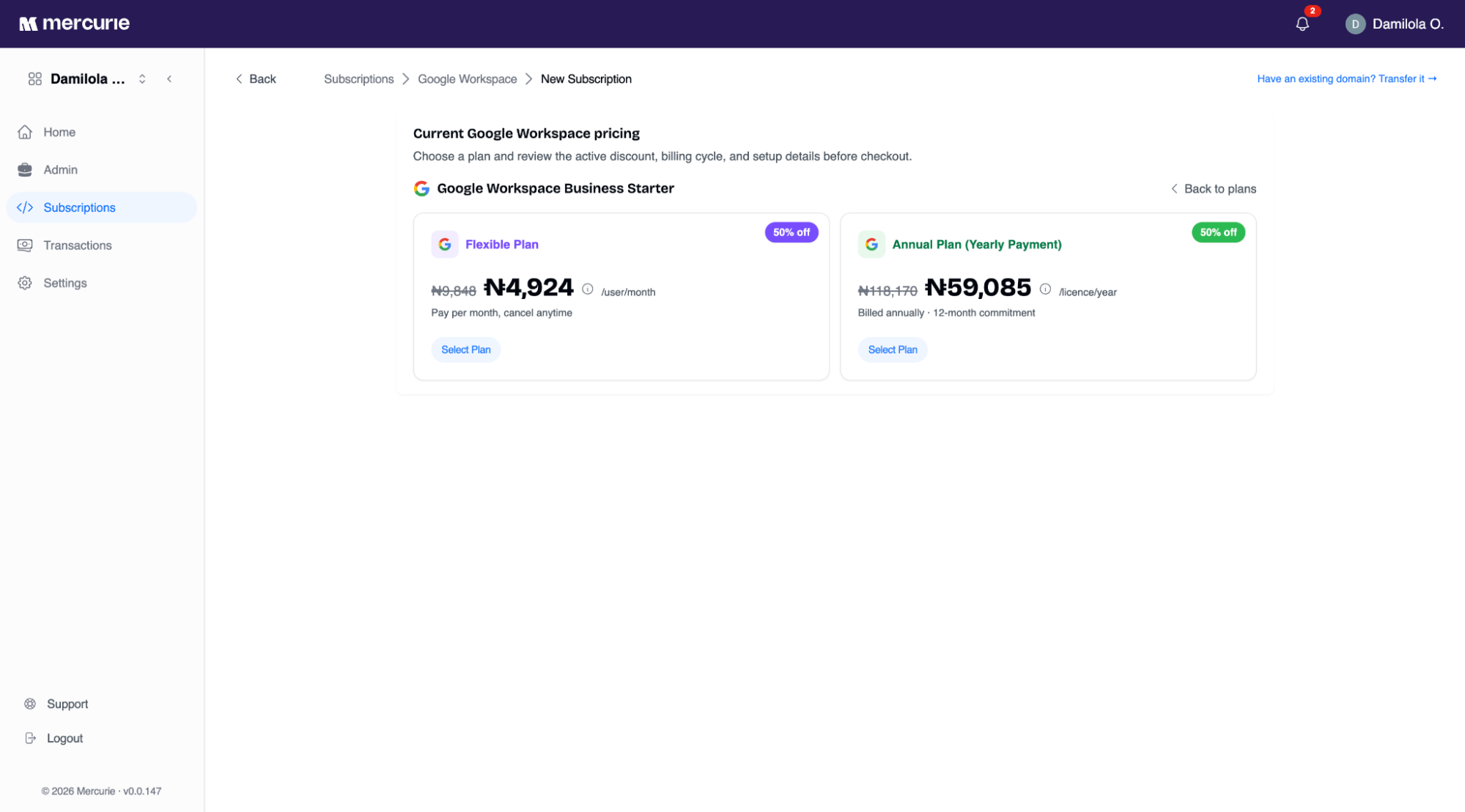
For each plan, select a billing cycle:
- Flexible Plan: pay monthly.
- Annual Plan: commit for the year. Depending on the offer available at checkout, you may pay yearly or use an annual monthly payment option.
Step 3: Enter your domain
On the Enter your Domain modal, type the primary domain you want to use for Google Workspace, such as yourcompany.com.
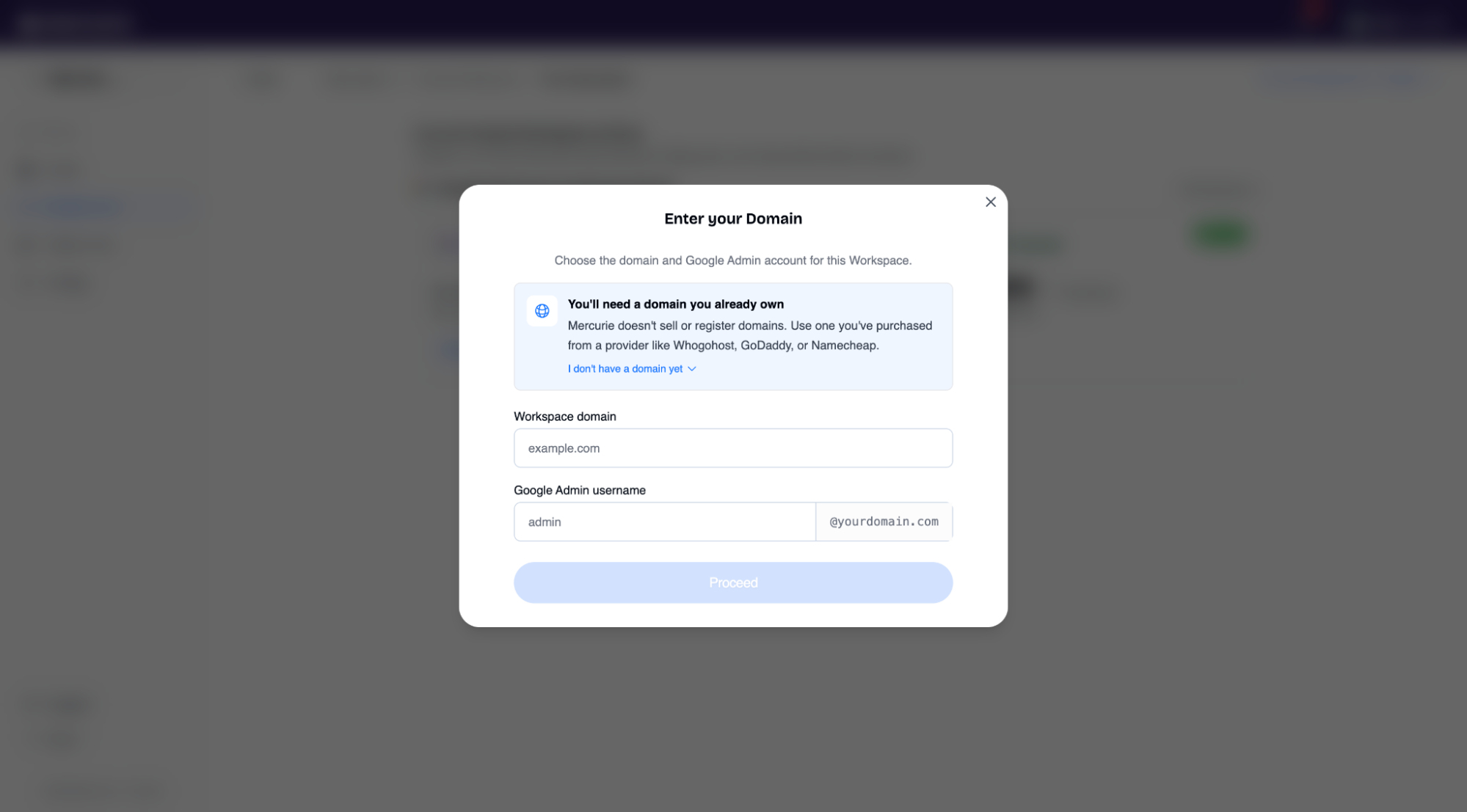
Mercurie checks two things in real time:
- Cloud Identity availability: whether the domain can be registered as a new Google Workspace tenant.
- Mercurie order availability: whether the domain is not already tied to an active or in-progress Mercurie order.
If either check fails, you'll see an error message and won't be able to continue. That could mean the domain is already registered on Google Workspace or already attached to a reseller. Pick a different domain or contact support if you believe the domain should be available.
Next, enter your Google Admin username. This becomes the super-admin account for the new Workspace account. For example, if you enter admin, your super-admin will be admin@yourcompany.com.
Click Next to continue.
Step 4: Review your order
Mercurie shows the Confirm Your Plan order summary before payment.
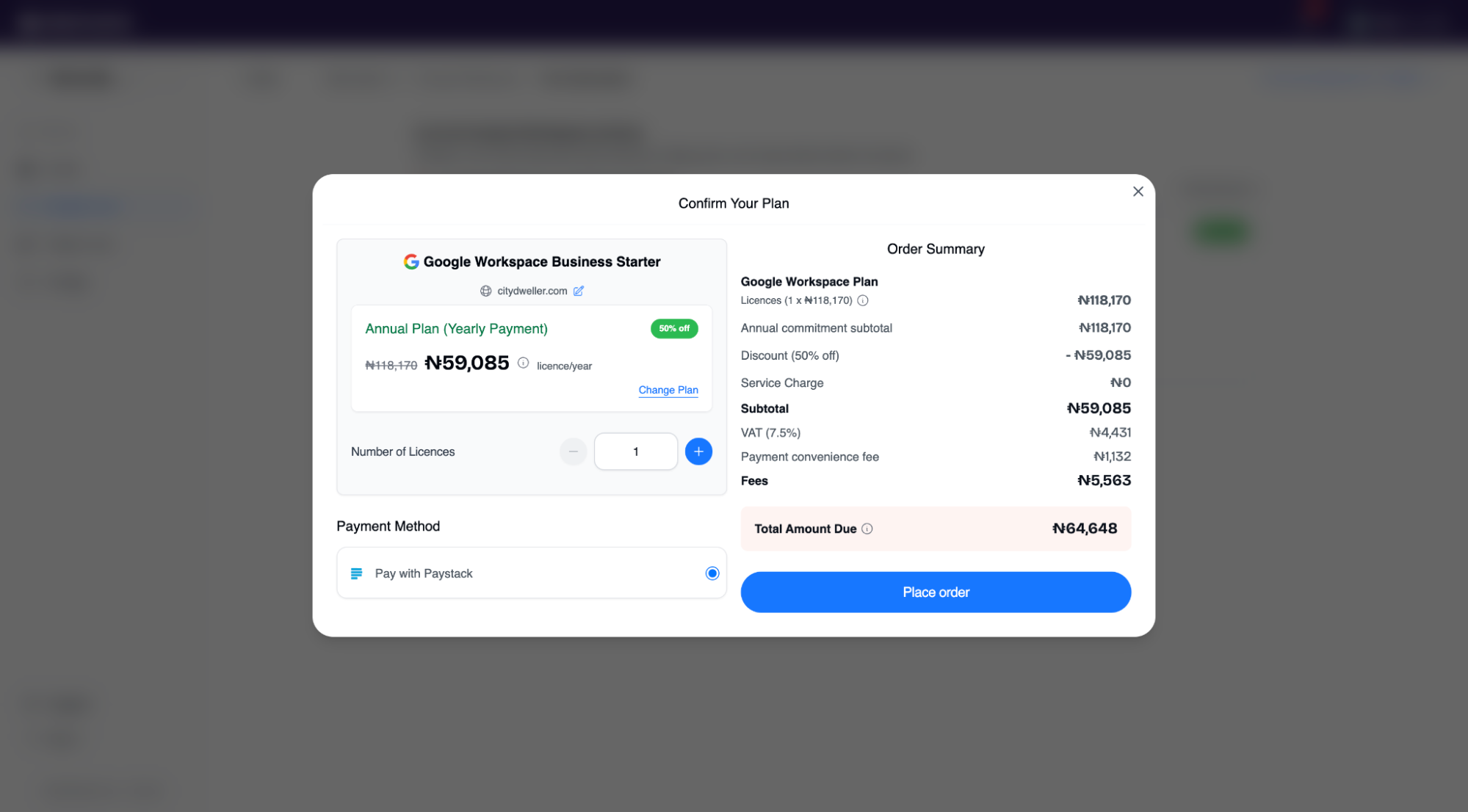
Review:
- Domain: the Workspace domain you entered.
- Licence count: the number of users included in the first order.
- Plan price: the current price for the selected plan and billing cycle.
- Discount or cashback: any offer applied to the order.
- Service charge: Mercurie's processing fee, if applicable.
- VAT: value-added tax shown before checkout.
- Total Amount Due: the final Naira amount you will pay now.
Discounts are applied before VAT. The discounted subtotal is calculated first, then VAT is calculated on that amount.
If the summary looks right, click Proceed.
Step 5: Pay with Paystack
Mercurie redirects you to Paystack to complete payment.
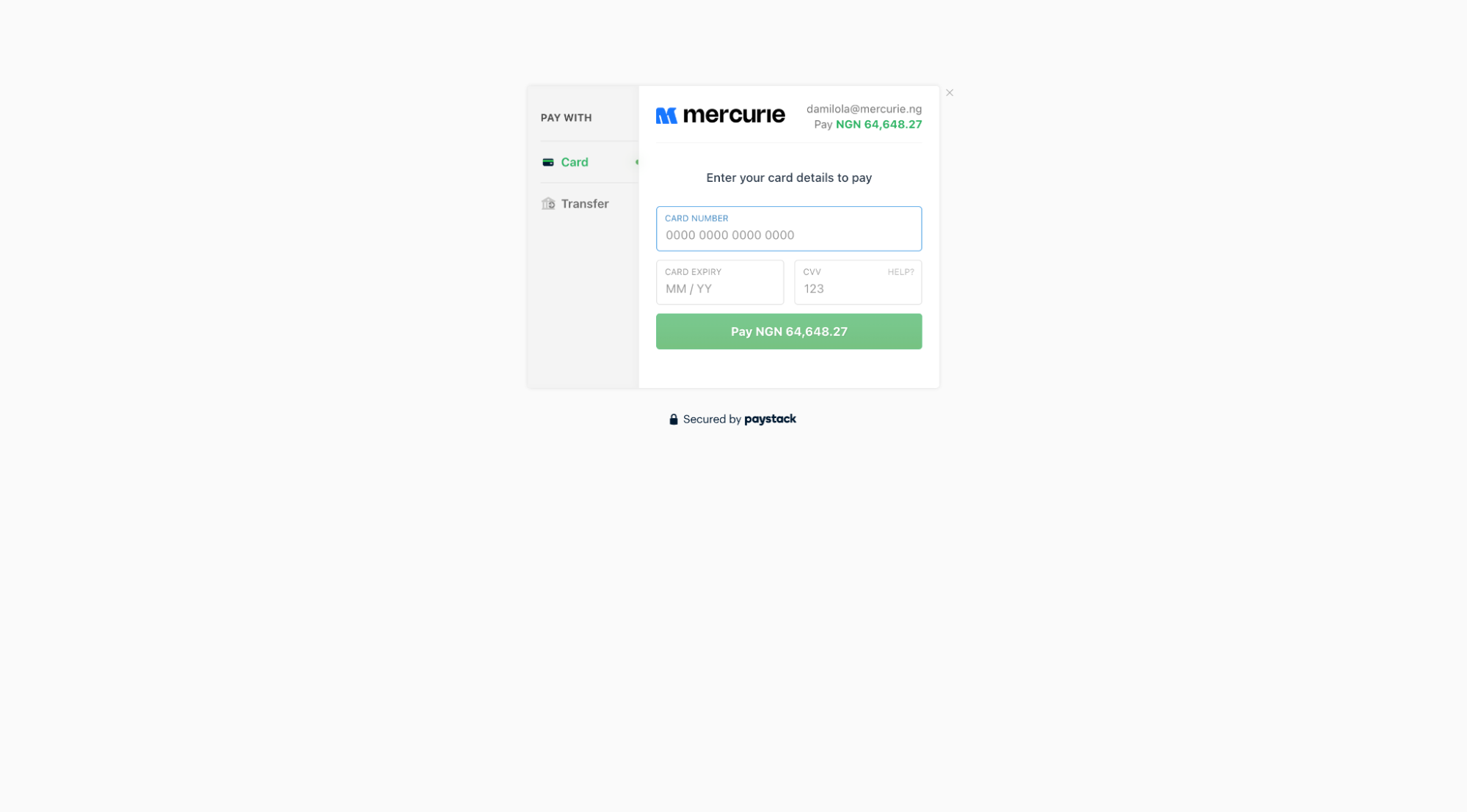
Enter your card details, then click Pay to authorize the charge. If your bank requires extra verification, follow the prompt from Paystack.
If payment succeeds, Mercurie begins provisioning your Google Workspace account. If payment fails, you can retry with the same or a different card without losing your place in the flow.
Step 6: Enter your business and admin details
On the Business details modal, Mercurie collects the information Google needs to provision the account.
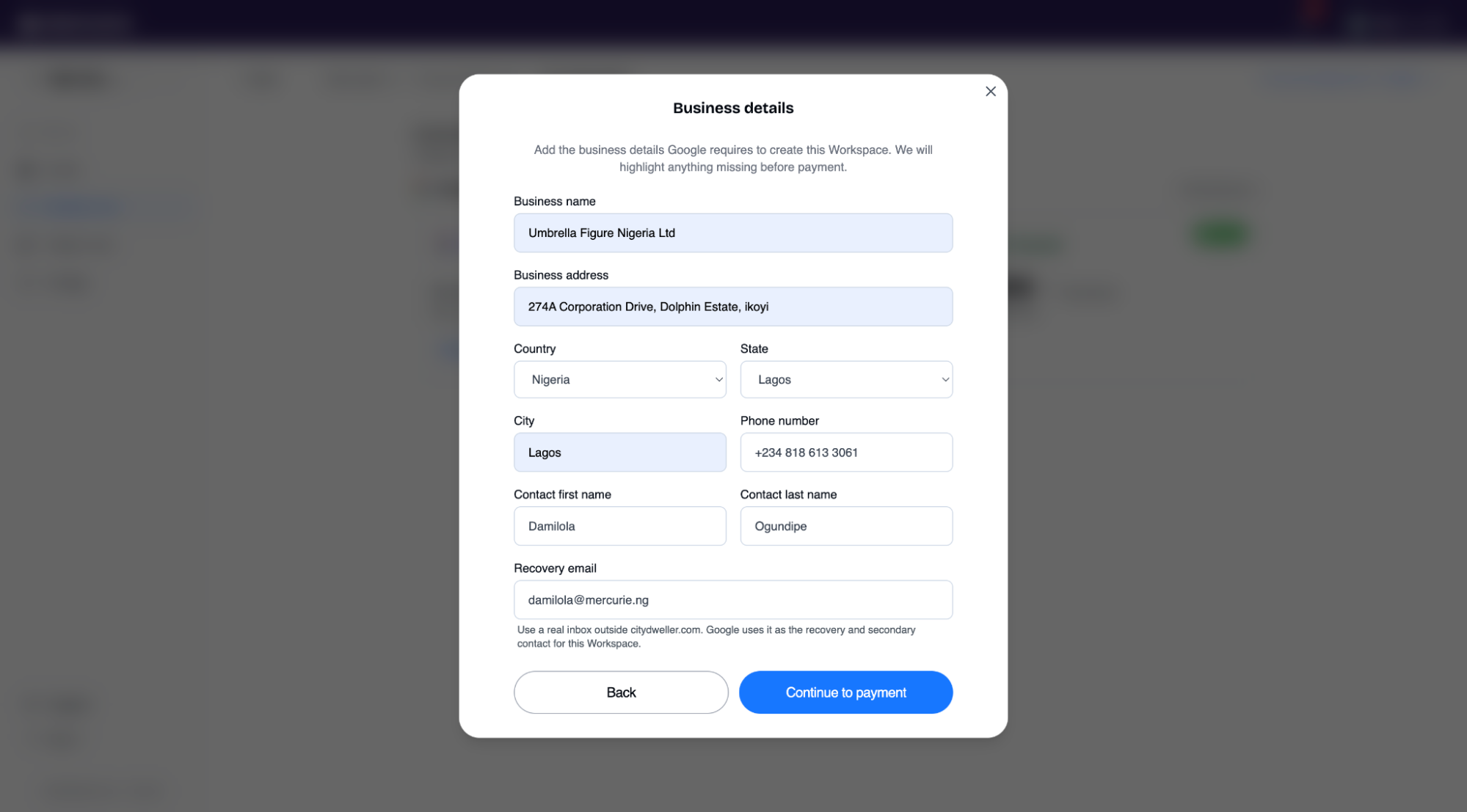
Business info
Fill in:
- Business name
- Business address
- Country
- State
- City
- Postal code
Admin details
Fill in:
- First name
- Last name
- Contact first name
- Contact last name
- Phone number
Click Confirm & activate when the details are complete.
Step 7: Back to the dashboard
After successful setup, you'll be redirected to your dashboard. You'll see:
- Your Google Workspace subscription listed in Mercurie.
- A transaction history entry for the payment.
- An action item if Google still needs admin setup or domain verification.
Provisioning is usually instant, but it can take up to 15 minutes. If the dashboard still shows Provisioning after a short wait, refresh the page. If Mercurie shows an error after your payment, follow Error after paying for Google Workspace before retrying or paying again. If provisioning remains stuck for longer than 30 minutes, open a support ticket.
Common questions
Can I change my plan later? Yes. Self-service plan changes are coming soon. For now, open a Support request from your subscription page. Mercurie will confirm eligibility and any billing impact before changing your Workspace edition.
Can I add more licences later? Yes. Open your subscription, click Manage, and increase the seat count. Mercurie charges the prorated amount for the additional users until your next regular billing date.
What happens if I pick Annual and want to cancel? Google Workspace annual subscriptions commit you for the full year. You can still cancel, but Mercurie does not refund the unused portion. This is a Google policy, not a Mercurie policy. If you need flexibility, choose the Flexible Plan.
Why is the price different from what I expected? Mercurie localizes Google's USD offer price to Naira using the current USD/NGN rate used for the quote. If you viewed the price earlier, a rate shift or provider catalog refresh may have changed the Naira total. The checkout always shows the live price before you pay.
Do I get a receipt? Yes. Mercurie sends a payment receipt after the transaction settles. You can also download receipts from your transaction history.
Can I pay by bank transfer instead of card? Not during initial checkout. Paystack card payment is the supported method for new subscription checkout. If you need another payment arrangement for future renewals, contact support after the subscription is active.
What if my domain is already in use on another Workspace account? If the domain is already tied to an active or in-progress Mercurie order, you'll see an availability error. If it's on a non-Mercurie Workspace account, use the transfer flow instead. If Google left the domain in a pending "domain in use" state after a failed signup on Google's site, follow Domain release.
Need help?
If anything in the flow feels unclear, or if you hit an error you can't resolve:
- Open a Support ticket from the Mercurie sidebar.
- Include a screenshot of the page where you're stuck and any error message you see.
- Most new-subscription issues are resolved faster when support has the domain, plan, and exact error message.